
Import with DataInlet in Odoo
Documentation is currently available in English only.
On this page
Start from the Odoo page that should receive your data. The page determines the kind of record to import, such as a contact or sales order, and whether to create records or update an existing one.
A system administrator must install and connect DataInlet before you start.
Choose the import target first
For a new import, Import with DataInlet uses the main record type (the Odoo model) shown by the view as its import target.
| Where you start | Import target | Record behavior |
|---|---|---|
| A list or kanban view | The model shown by the view | Create new records |
| The form of a saved record | That model and the open record | Update the open record |
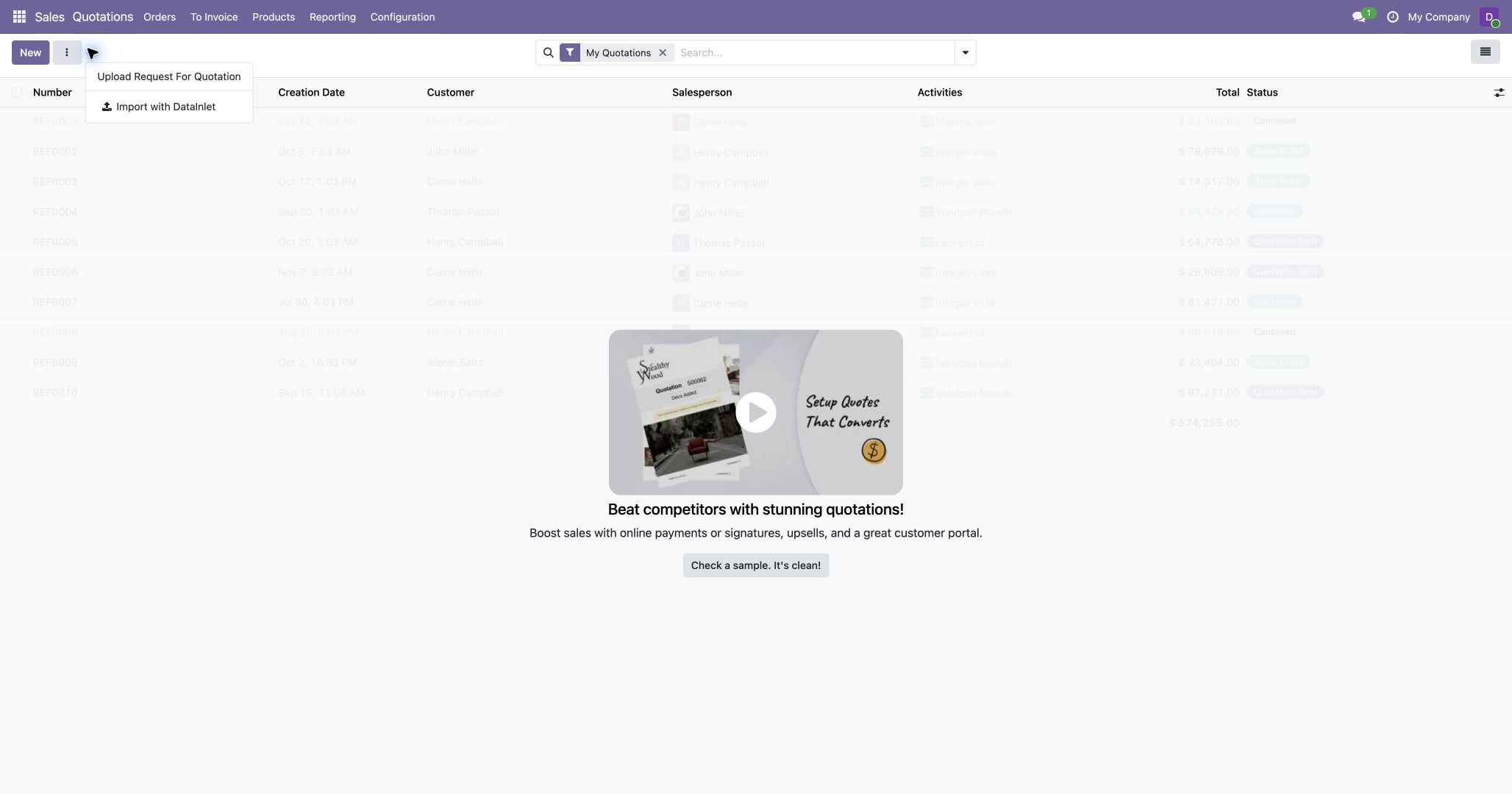
The example starts from Sales → Orders → Quotations, using an Excel quotation with customer information and two product lines. The upload dialog identifies the target as Sales Order: Odoo uses this record type for quotations too.
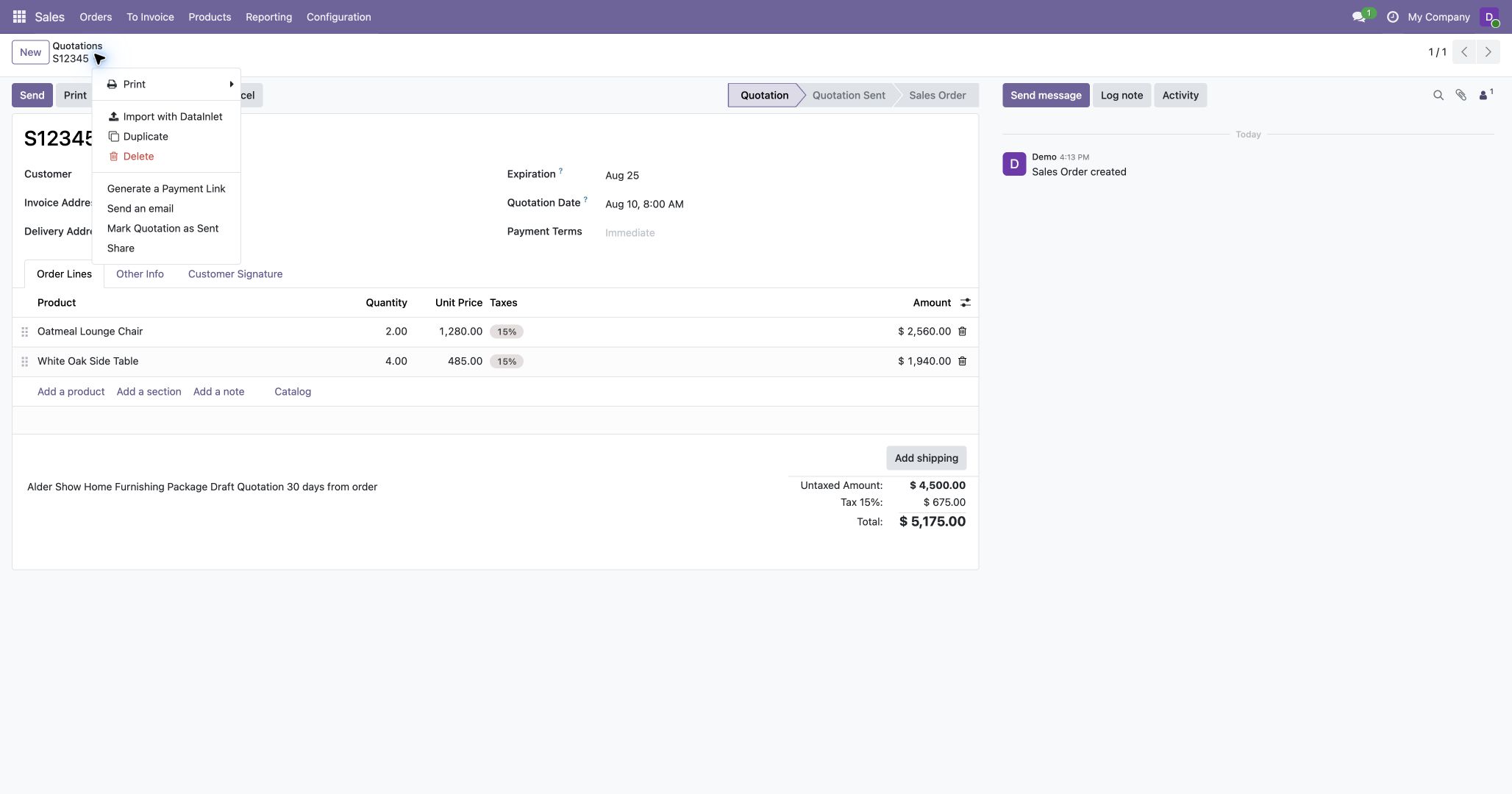
Starting from the Quotations list creates new records. Starting from a saved quotation form updates that quotation. Save the record before starting an update. Selecting rows in a list does not select records to update. The upload dialog shows the target name; the starting view determines whether the import creates or updates records. To change the target, close the dialog and start again from the intended Odoo page.
When updating a record, Related Record Handling controls related rows, such as order lines. Append mapped related records is the default and keeps existing rows. Replace mapped related records clears the existing relations for each mapped field before adding the imported rows. Depending on Odoo's field configuration, clearing a relation can also delete its previous child records.
Start an import
- Open the form, list, or kanban view that represents the intended target.
- Open the view's cog menu and select Import with DataInlet.
- Confirm the displayed target, then attach one or more CSV or Excel files
(
.csvor.xlsx). - Add an import instruction only when the desired outcome is not evident from the source and target. If you are updating a record, also confirm the related record handling.
- Select Start.
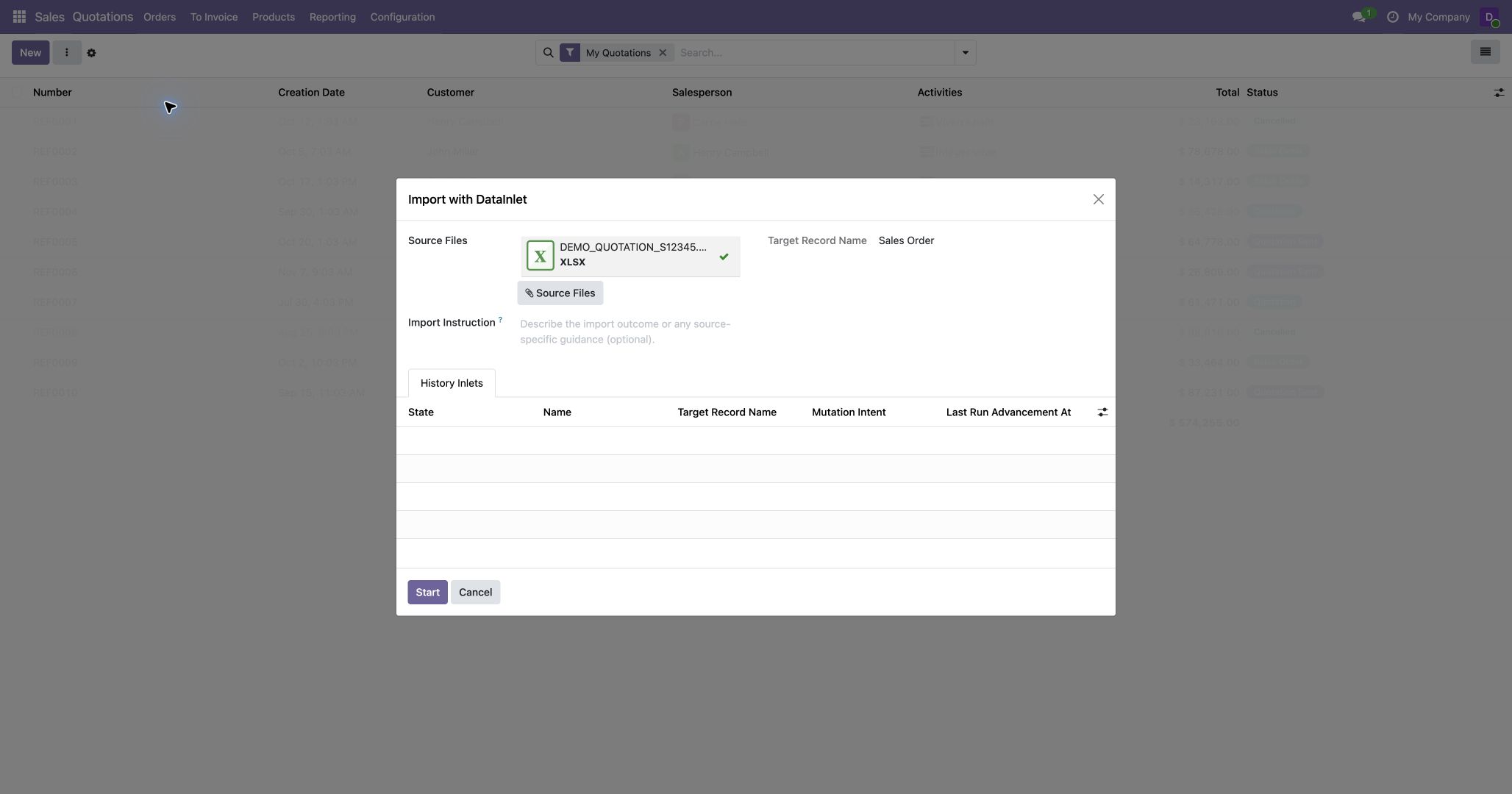
Attach the quotation workbook from the Quotations list to create a new record.
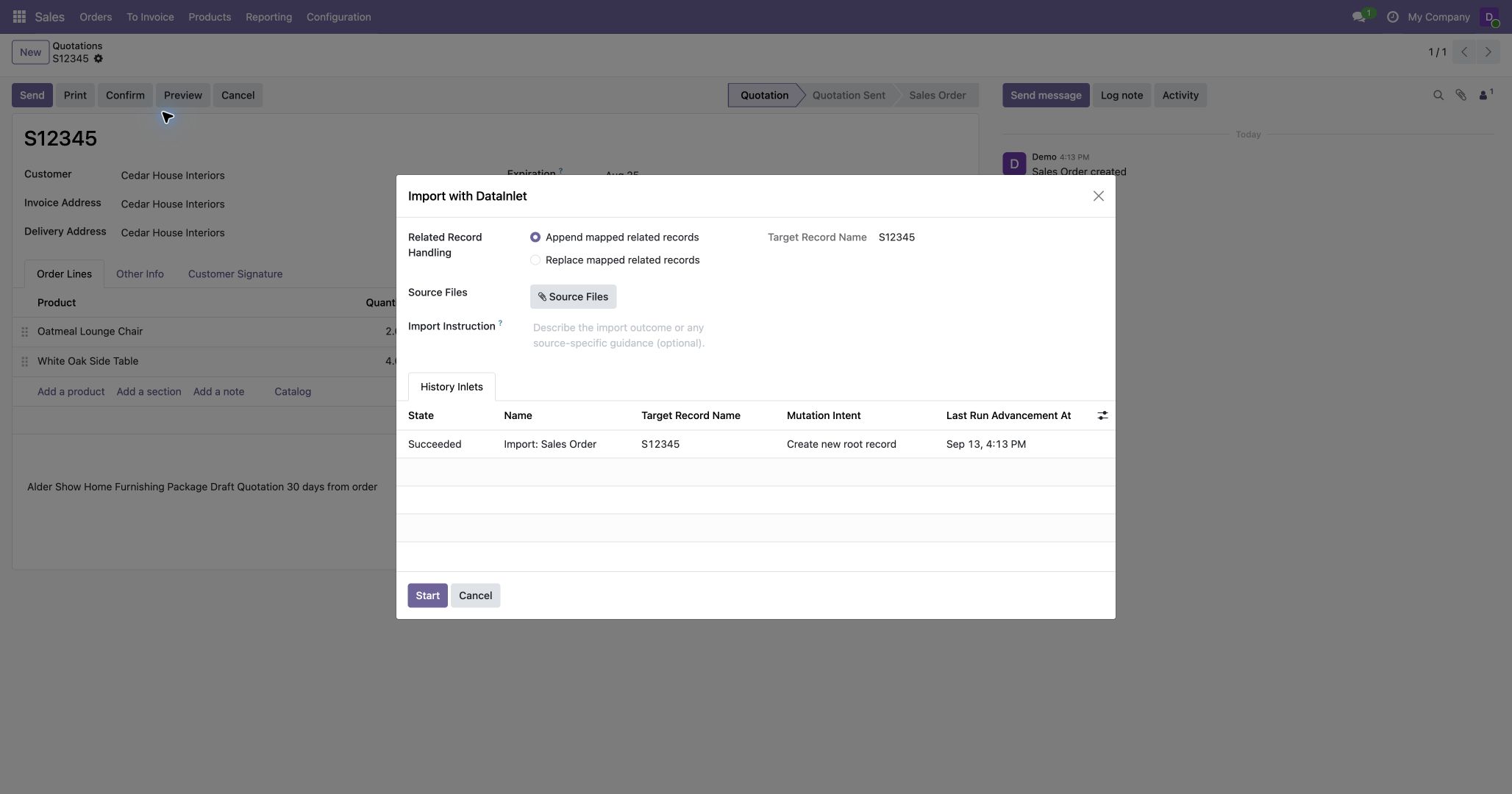
On a saved quotation, the target is its record name and the dialog offers related record handling for its order lines.
Imports use Autopilot by default. If the dialog offers Interactive, you can choose it to respond to requests for input or decisions in the Operator.
DataInlet creates an Inlet to track the import and opens it in Odoo. The Operator tab shows its progress and any decision or input that needs your attention. After it starts, you can close the dialog. Work continues in the background until it finishes or needs attention. Reopen the Inlet to follow its progress.
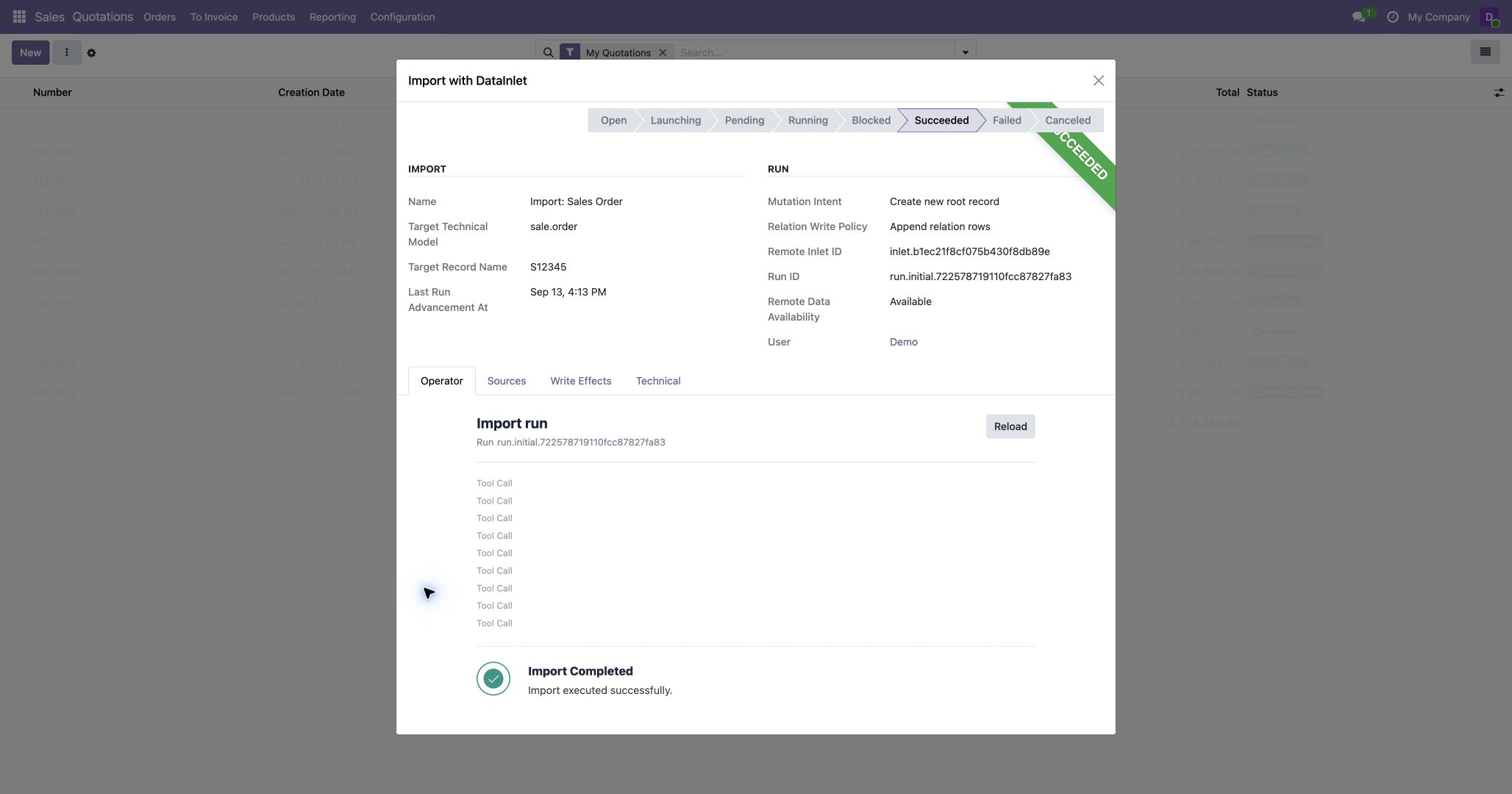
The Inlet and Operator show when the import has completed.
Permission boundary
An import started from Odoo runs as the user who started it. List imports use the current company; an update uses the open record's company when it has one. Background work keeps this identity and company context. Odoo access rights, record rules, and validation apply to the records DataInlet reads or writes.
A list or kanban import requires permission to create that kind of record. An import from an existing form requires permission to update that record.
Return to an import
Open Import with DataInlet again. From a saved form, Odoo looks for an active Inlet for that record; from a list or kanban, it looks across that record type. Both searches use your user and the import's company context. If a matching Inlet is still active, Odoo reopens it. The upload dialog's History Inlets tab shows earlier imports in the same scope.
Access Rights administrators can review imports across users from Settings → DataInlet → Inlets. See Roles and entry points for the required Odoo permissions.
Review the result
The Inlet status shows whether work is in progress, needs attention, succeeded, failed, or was canceled. Its Write Effects page records the Odoo records written by that import. Review these effects before starting another import after a failure or cancellation: records may already have been written.
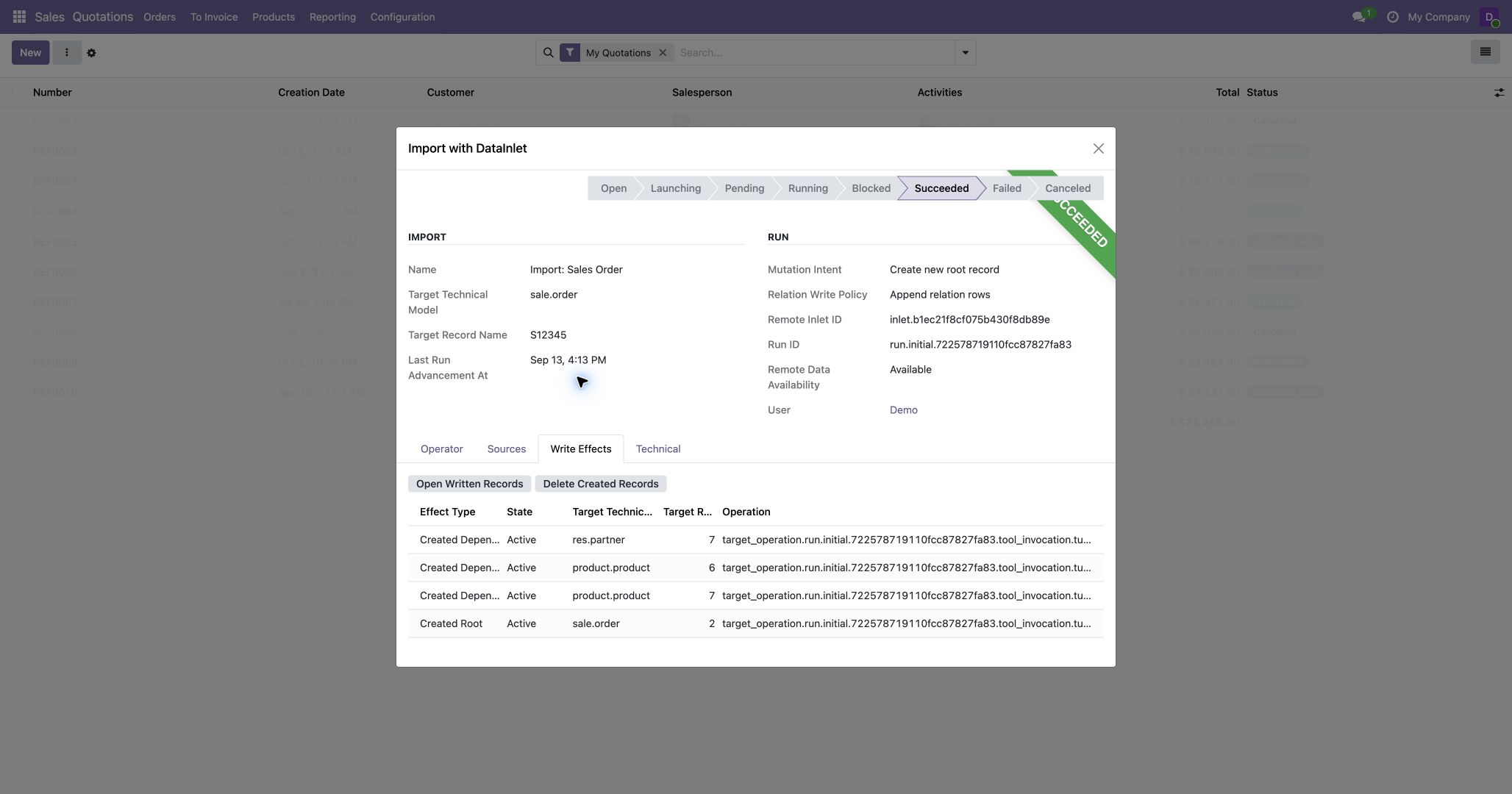
This quotation import created a customer, two products, and the quotation record.
- Open Written Records opens the affected records, or a list of write effects when they span multiple record types.
- Delete Created Records deletes records created by this Inlet, subject to current Odoo permissions and dependencies. It does not undo updates made to records that already existed.
For this example, return to Sales → Orders → Quotations and open the imported quotation to check its customer and order lines against the workbook.
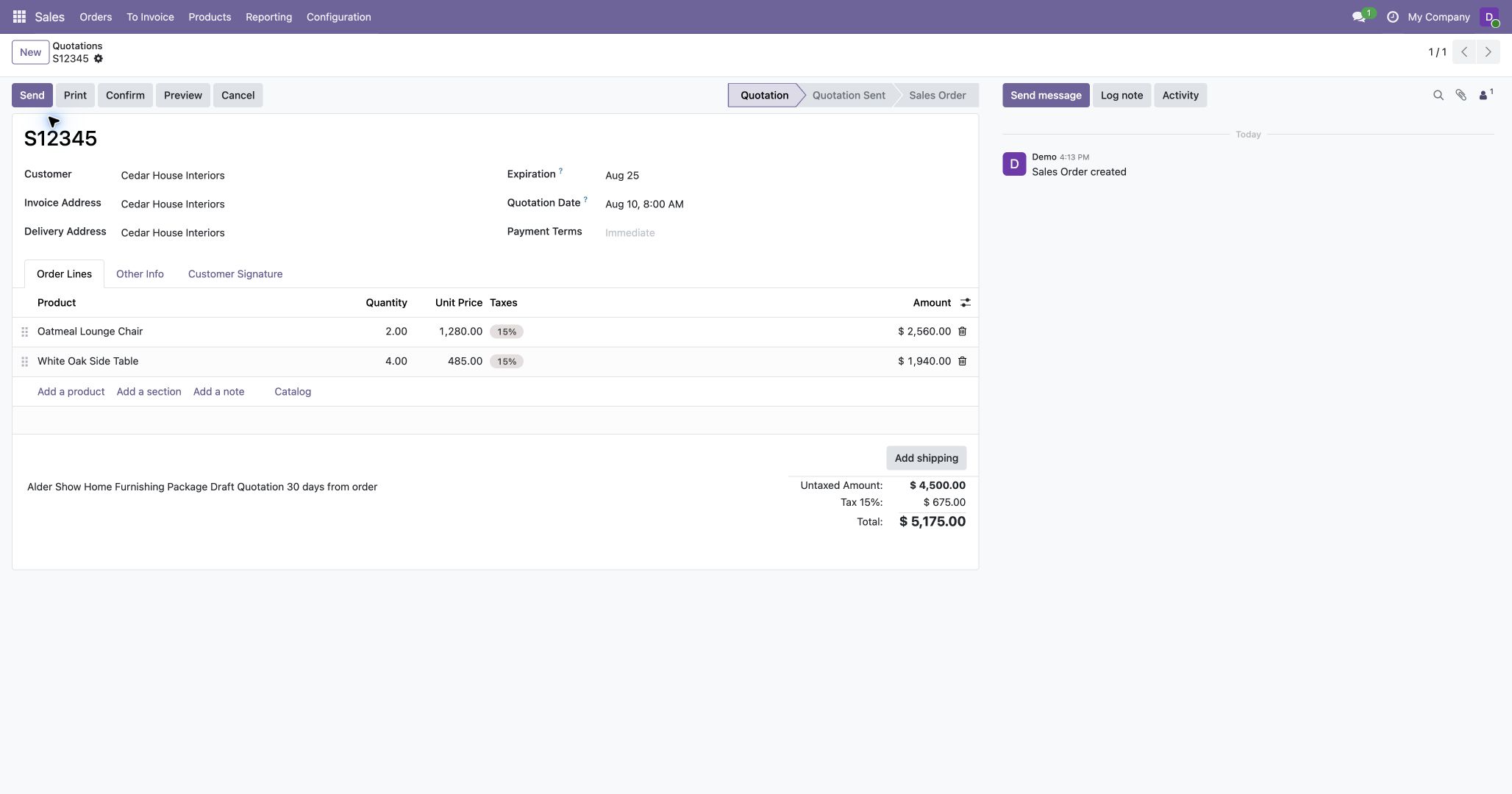
The quantities and unit prices match the workbook. This database applies its configured 15% sales tax, so the total is USD 5,175; the source's USD 4,500 is the untaxed amount.
Cancel Import requests a stop. A canceled import may offer Restart while its DataInlet data is still available. On a canceled Inlet, Delete removes the local Odoo Inlet record; it does not delete remote DataInlet data or business records created by the import.
If the import cannot start
- If Import with DataInlet is absent, use a supported form, list, or kanban view. A list or kanban view that disables normal creation or import does not offer the entry.
- If Odoo says DataInlet is not connected, ask a system administrator to connect the database.
- If Odoo denies create or write access, use a target and user with the required business permissions; connecting DataInlet does not grant those permissions.
- If the Inlet reports a billing issue, ask an Access Rights administrator to review the connected account's DataInlet credits.
- If a start attempt is blocked and Retry Launch is available, resolve the reported issue and use that action to retry the same Inlet.
- If Odoo reports that remote DataInlet data has been cleaned, you can still review the local Inlet and imported records. To process the source again, start a new import.
See the Admin docs for connection and shared configuration.